EzeTax
How to run Abhimanyu
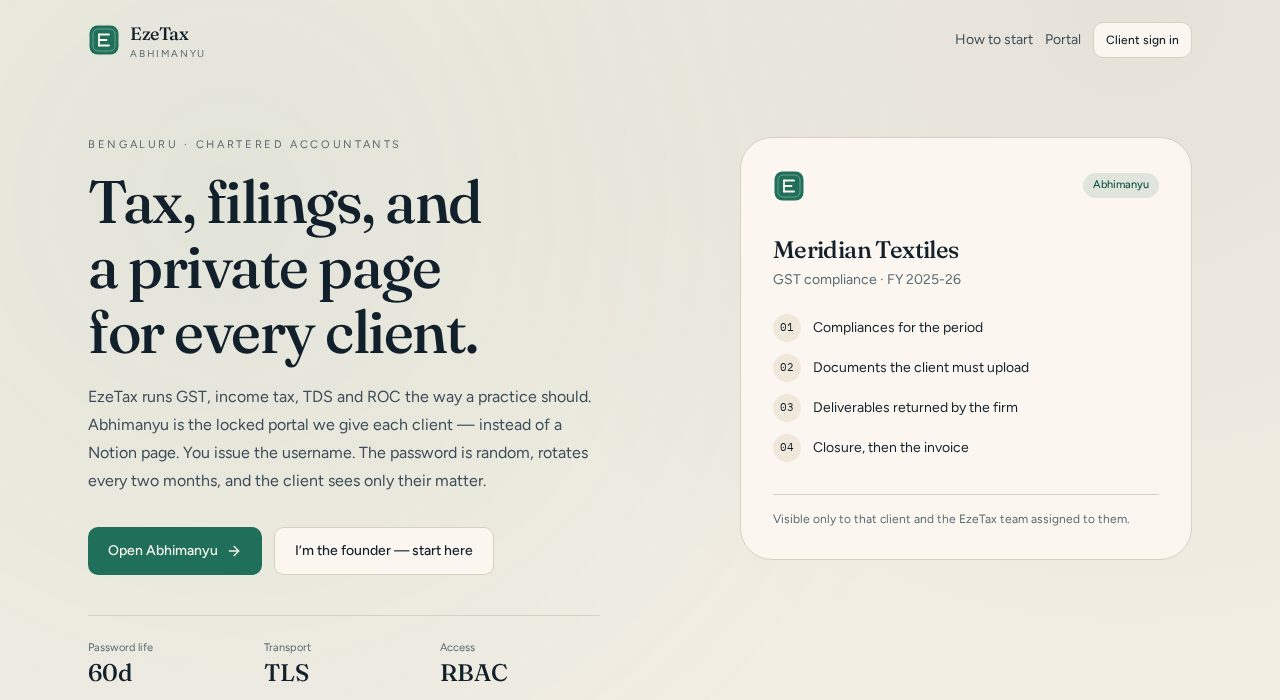
EzeTax is the practice. Abhimanyu is the locked room you give each client — the private page that used to live in Notion.
No software words required. Follow the seven steps once. After that you are only copying a WhatsApp note and ticking a checklist.
The practice
EzeTax
Your firm. Clients already know this name.
The tool
Abhimanyu
The locked client portal. One private page per client. You hold the keys.
What you will see
Today
Seven taps. Then you are running.
- 01You go first. Sign in as the firm. The first person from EzeTax who signs in becomes the owner.
- 02Open a private page for one client. Each client gets their own locked room. They never see anyone else.
- 03Catch the two secrets. Username is generated. Password is random. You see the password only once.
- 04Send it on WhatsApp (or a call). A ready-made note sits on the credentials screen. Copy it. Send it only to that client.
- 05They walk into their room only. After sign-in they see Abhimanyu — their name, their checklist, nobody else’s.
- 06Papers come in. You get a ping.. When they upload, a trigger is written to services@ezetax.in and to the Mail room.
- 07Finish the job. Mark the service complete. The client gets a mail. The invoice stays on their page.
- 01
You go first
Sign in as the firm. The first person from EzeTax who signs in becomes the owner.
- On the website, tap Client sign in, then open the Team tab.
- Sign in with Google, X, or a staff username. That first sign-in is you — the owner of the practice.
- If an employee signs in later with Google, they wait on a “pending” screen until you approve them.
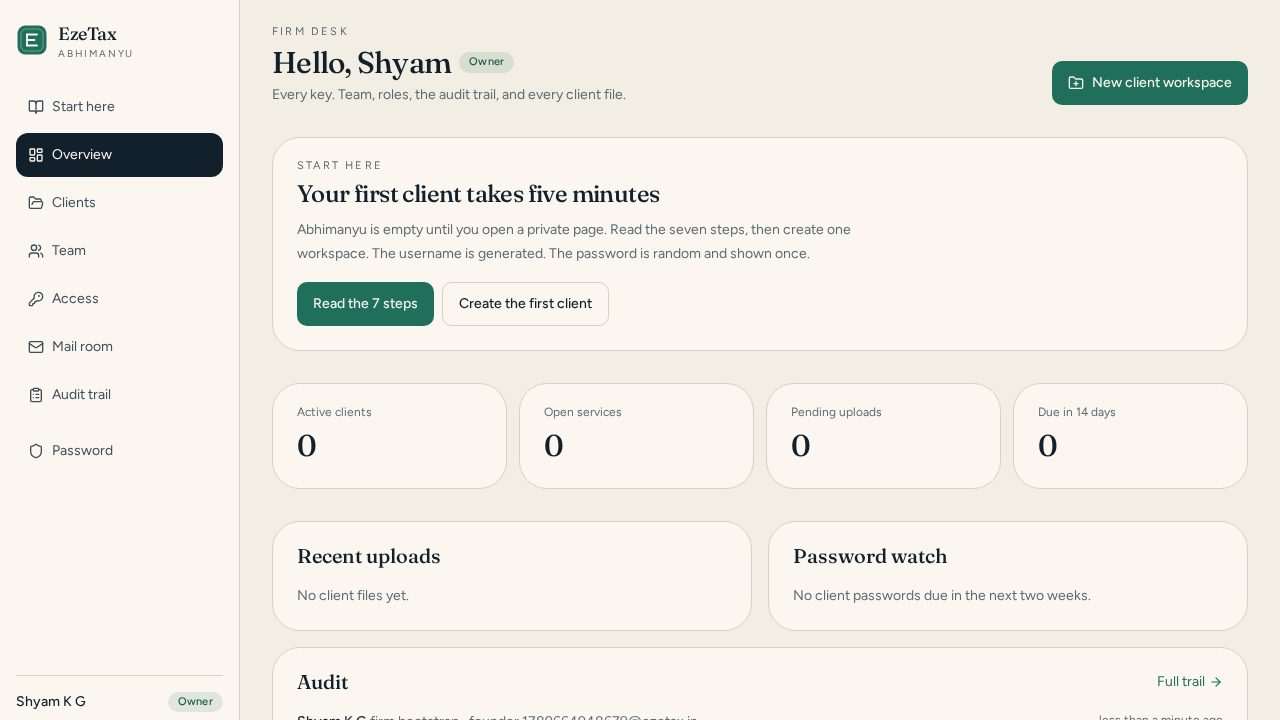
You’ll know it worked when: You can see the firm desk with a left-hand menu.
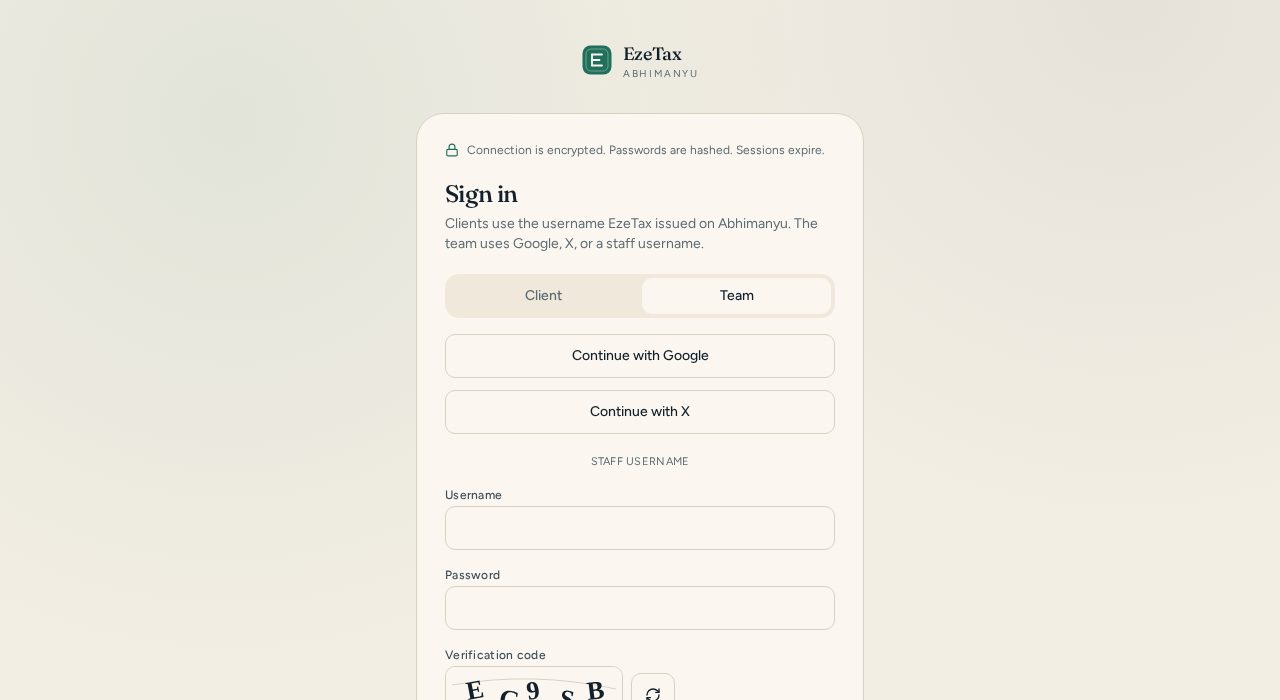
Team tab. This is how you walk in. - 02
Open a private page for one client
Each client gets their own locked room. They never see anyone else.
- On the firm desk tap New client workspace.
- Type the company’s legal name and the email you already use with them. PAN and GSTIN help, but name + email is enough to start.
- Pick the first service — GST, income tax, ROC, TDS or payroll. Abhimanyu fills the checklist, the upload slots, and the invoice line for you.
You’ll know it worked when: You land on a screen that shows a username and a one-time password.
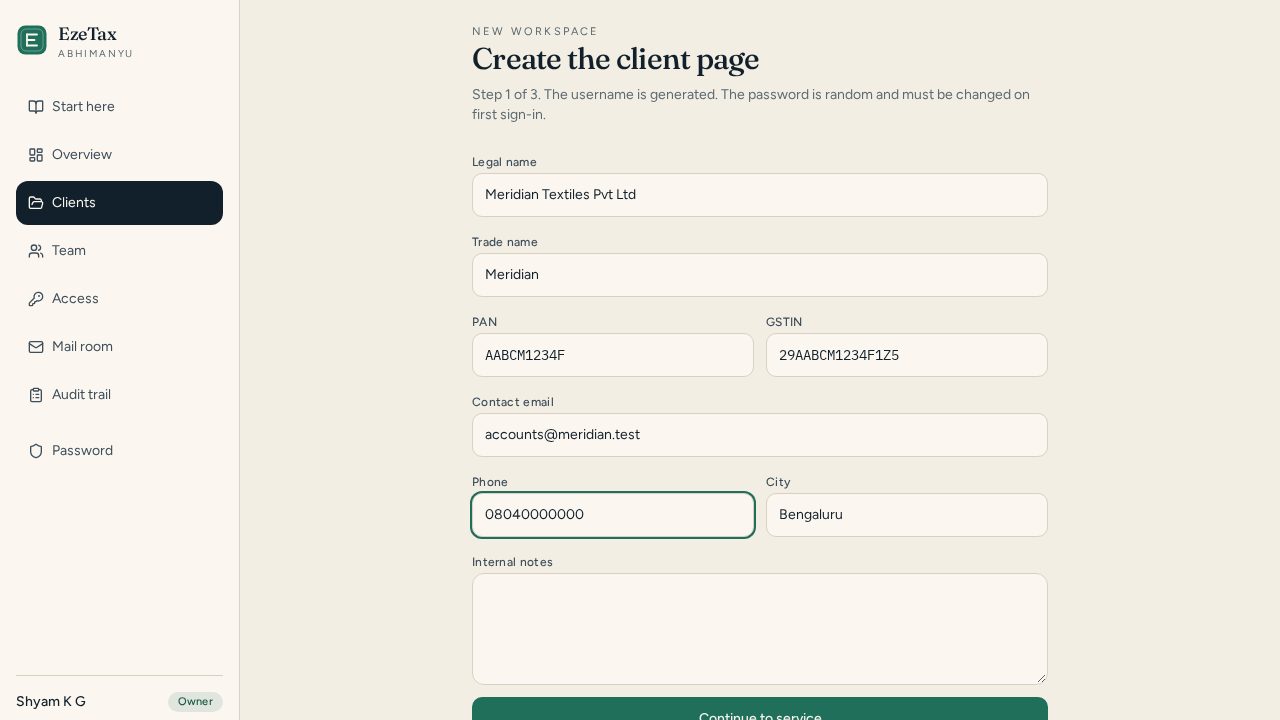
Name and email are enough to open the first private page. - 03
Catch the two secrets
Username is generated. Password is random. You see the password only once.
- Copy both lines before you leave the screen.
- The password is not kept in plain words. If you lose it, go to the client file and tap Reset password — a new one is minted, and they must change it on the next sign-in.
- Passwords expire every 60 days. Abhimanyu will ask them (and you) to set a new one.
You’ll know it worked when: You have the username and password on a piece of paper or in a private note — not in a group chat.
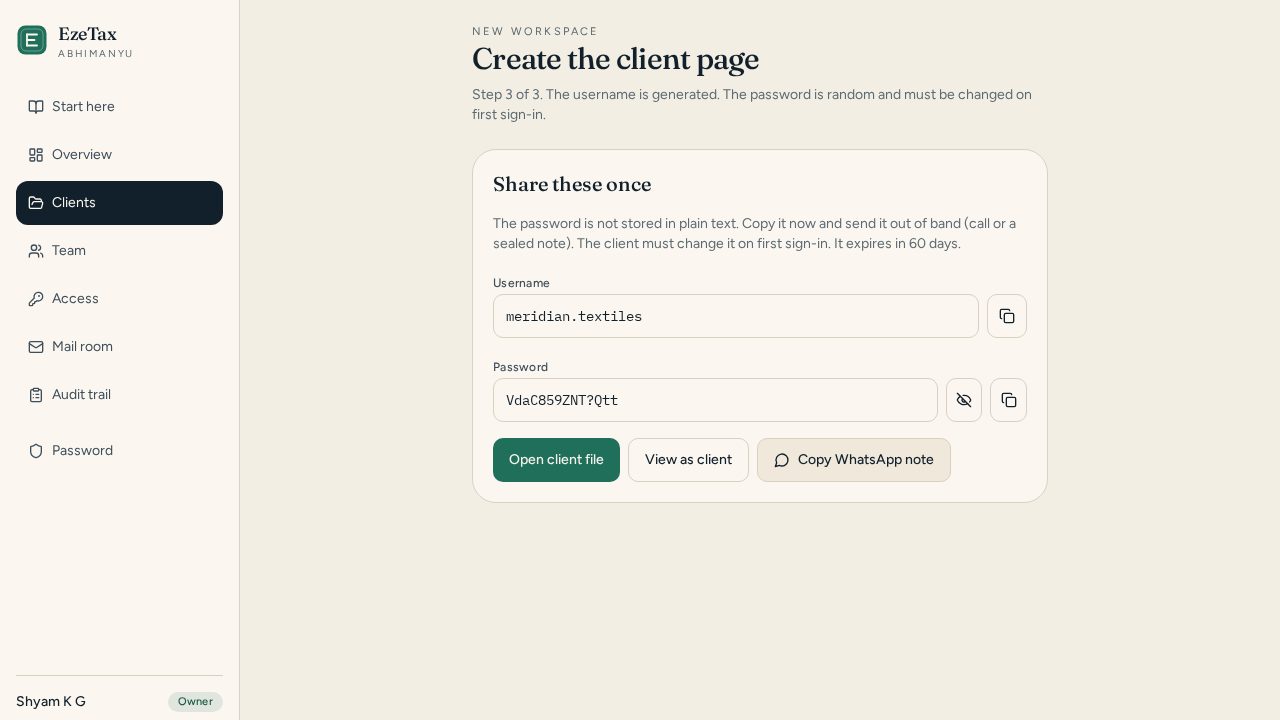
The password is shown once. Copy the WhatsApp note on this screen. - 04
Send it on WhatsApp (or a call)
A ready-made note sits on the credentials screen. Copy it. Send it only to that client.
- Do not put the password in an email trail if you can help it. A call, a sealed note, or a one-to-one WhatsApp is enough.
- Tell them: Client sign in → type the letters → tick “I am not a robot” → sign in → set your own password.
- They cannot create an account themselves. Only EzeTax issues logins.
You’ll know it worked when: The client has the two lines and knows which button to tap.
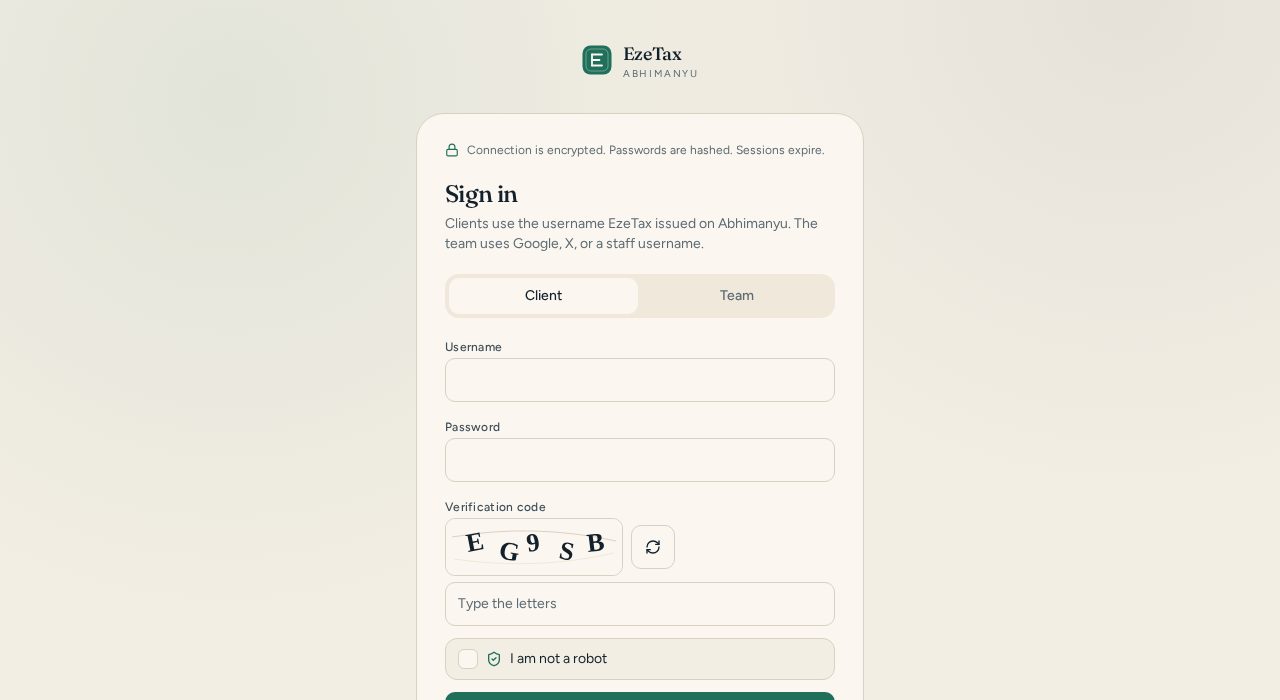
This is the door the client uses. Letters + “I am not a robot”. - 05
They walk into their room only
After sign-in they see Abhimanyu — their name, their checklist, nobody else’s.
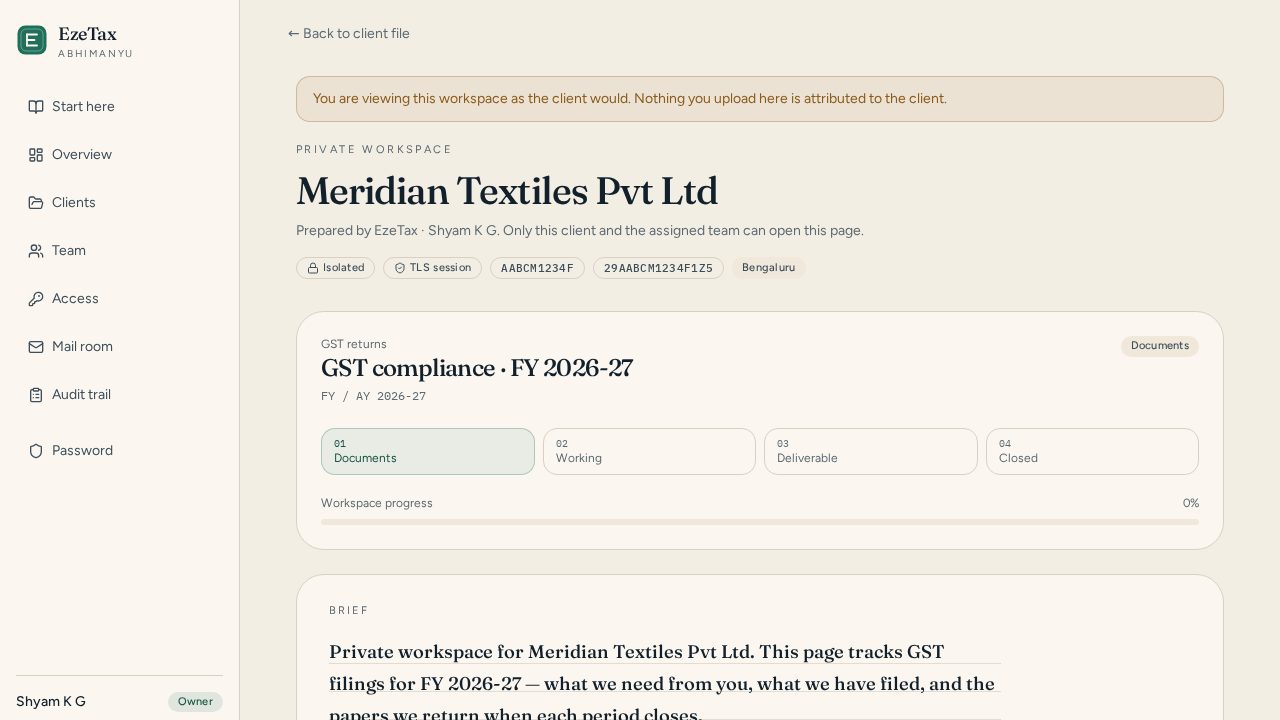
- Want to check it yourself first? On the client file tap View as client. You see their page without logging out.
- The client never sees the firm menu, other companies, or your internal notes.
- If the letters look hard, they can tap the refresh icon for a new code.
You’ll know it worked when: You have previewed the page, or the client has signed in once.
View as client — their checklist, their uploads, nobody else. - 06
Papers come in. You get a ping.
When they upload, a trigger is written to services@ezetax.in and to the Mail room.
- Open Mail room on the left to see every ping even before the mailbox on ezetax.in is connected.
- Open the client file. Tick the compliance lines. Put the finished work in Deliverables. Put the bill on Invoice.
- Your employees only see the clients you assign to them.
You’ll know it worked when: An upload appears on the firm desk under Recent uploads.
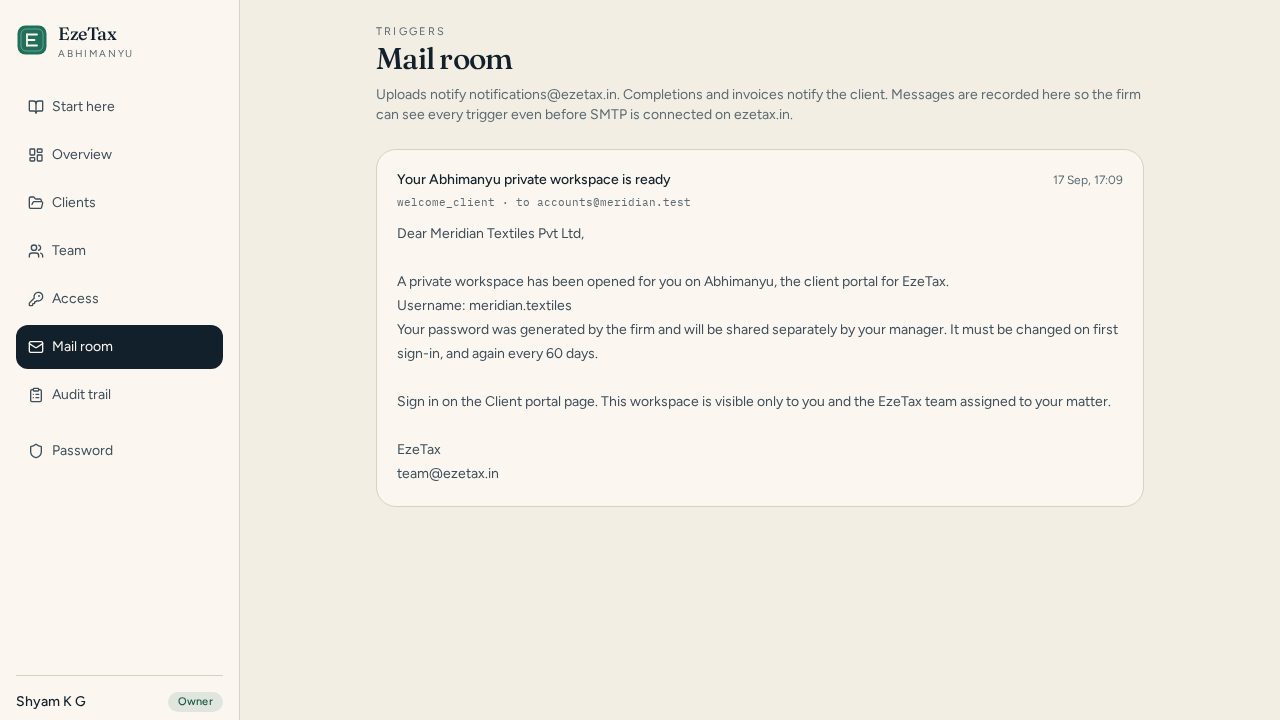
Every ping lives here, even before the mailbox at services@ezetax.in is connected. - 07
Finish the job
Mark the service complete. The client gets a mail. The invoice stays on their page.
- On the engagement, change status to complete when the work is done.
- Abhimanyu writes to the client: the service is marked complete, and the files are waiting on their private page.
- Next year (or next quarter) open a new service on the same client — you do not create a second login.
You’ll know it worked when: The client can see the deliverable, the invoice, and a closed job.
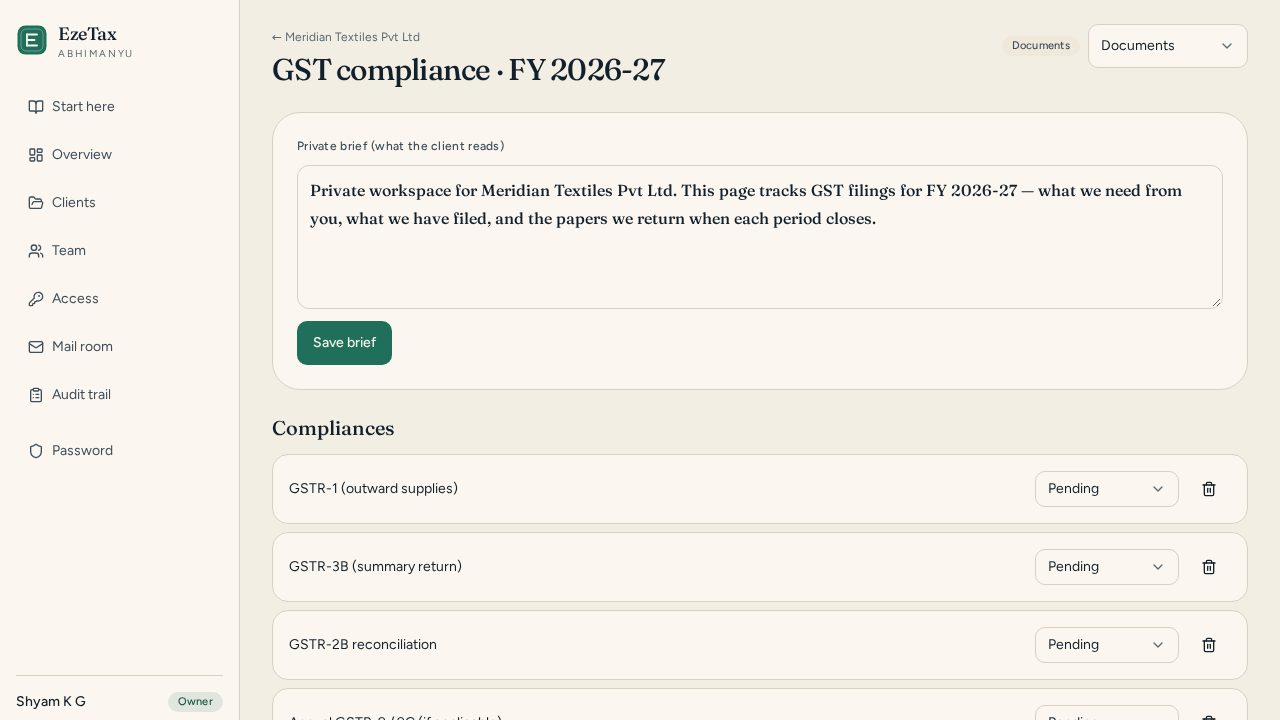
When the work is done, change status to complete. They get a mail.
The WhatsApp note
Copy this the first time
After you create a client, Abhimanyu fills in the real username and password. This is the shape of the message.
Hello the client,

Your private page on Abhimanyu (EzeTax) is ready.

1. Open the EzeTax website and tap Client sign in.
2. Username: (Abhimanyu fills this)
3. One-time password: (shown once, on the next screen)
4. Type the letters you see, tick “I am not a robot”, then sign in.
5. You will be asked to set your own password. After that you only see your work — papers to upload, our deliverables, and the invoice.

Please do not forward this message.

— EzeTax
services@ezetax.in
The left-hand menu
What each room is
- Overview
- Today’s numbers — open jobs, pending papers, passwords about to expire.
- Clients
- Every private page. This is where you create, assign, and reset logins.
- Team
- Your employees. Issue a username, or approve someone who signed in with Google.
- Access
- Who is allowed to do what. Owners hold every key. Staff see only assigned files.
- Mail room
- A copy of every mail Abhimanyu would send — uploads, completion, invoices.
- Client Books
- Each client’s Zoho organisation — their overdue, aging, GST. This is not EzeTax’s ledger.
- Audit trail
- Who opened, uploaded, or reset what. Keep this if a client ever asks.
Who can do what
Four seats, four keys
You (owner)
Create clients, issue passwords, add staff, see every file, connect a client’s Zoho Books, close jobs, send invoices.
Manager
Run the practice day to day — clients, assignments, invoices, and attaching a client’s Zoho Books — without handing over the whole firm.
Employee (staff)
Work only the client files you assign. They can read that client’s Zoho insights. They cannot mint a new client or change roles.
Client
See their own page. Optionally connect their own Zoho Books. Upload papers. Read deliverables and the invoice. Nothing else.
If something feels stuck
Common snags
I closed the password screen.
Open the client file → Reset password. A new random password appears. Send that one.
The client says the letters are wrong.
Ask them to tap the refresh icon next to the code, type the new letters, and tick “I am not a robot”.
An employee is stuck on “Access pending”.
You: Team → find their name → approve and pick Staff or Manager.
I cannot see a client that exists.
Staff only see assigned files. Open the client file as owner and assign that employee.
They forgot the password after changing it.
You reset it. They cannot recover it themselves. That is by design.
Where do I connect a client’s Zoho Books?
Only you, from the client file in the partner portal. The client cannot paste keys. Not Office Integrator. Open books.zoho.in for the Organisation ID, then api-console.zoho.in → purple Self Client → paste Client ID, Secret, and Grant code on that client file.
Can I ask turnover on WhatsApp?
Open Model in the partner menu. For a free trial pick Groq Llama 3.3, paste a key from console.groq.com/keys, and save. Then open WhatsApp and try “what’s my turnover till date”.
The locks, in one breath
The site runs on encrypted transport (the lock in the browser). Clients type a code and tick “I am not a robot”. Five wrong passwords lock the account for fifteen minutes. Passwords rotate every two months. Each client sees only their page. Staff see only assigned files. Every open, upload and reset is written to the audit trail.
Questions: services@ezetax.in